Scene Main Splat
Splat settings affect how the underlying scan data is displayed and handled in the scene. Use them when you need to tune the visual result or check how the source splat is being used.
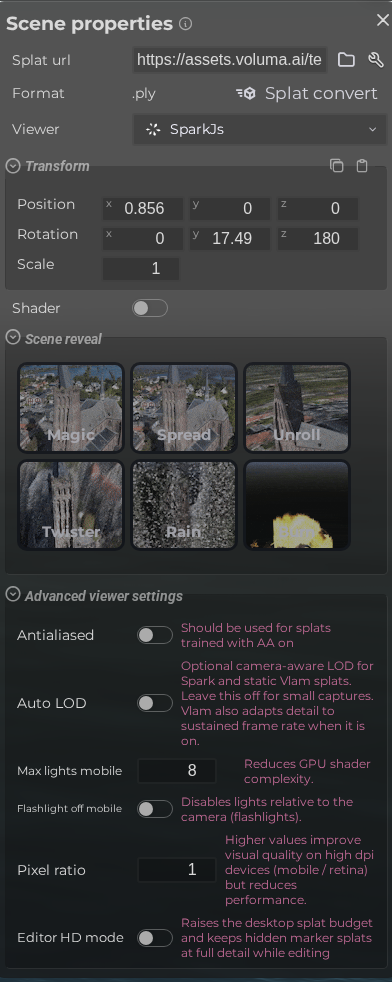
LCC viewer
 Steps: Expand scene settings section → Select the Splat scene section → Expand all collapsed fieldsets
Interface elements
| Element | Details |
|---|---|
 | Splat URL The URL or file path of the main gaussian splat asset for this scene. |
 | Viewer Engine Choose which rendering engine is used to display this splat file. |
 | Shader Enable a color shader overlay on the main splat to adjust its appearance. |
Advanced viewer settings
| Element | Details |
|---|---|
 | Anti-aliasing Enable anti-aliasing to smooth jagged edges in the rendered scene. |
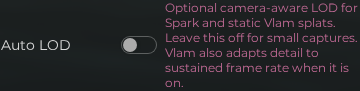 | Auto LOD Automatically adjust the level of detail based on available bandwidth and device performance. |
 | Maximum number of lights on mobile Limits the number of active light sources on mobile devices. Lowering this can prevent crashes caused by running out of memory. |
 | Disable Flashlight Mobile Toggles the flashlight when a scene is opened on a mobile device to improve performance and prevent crashes with larger scenes. |
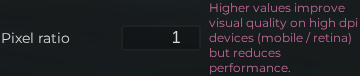 | Max Pixel Ratio Cap the device pixel ratio used for rendering to balance quality and performance on high-DPI screens. |
 | Editor Scene Properties Splat Hd Mode Documentation for Editor Scene Properties Splat Hd Mode. |
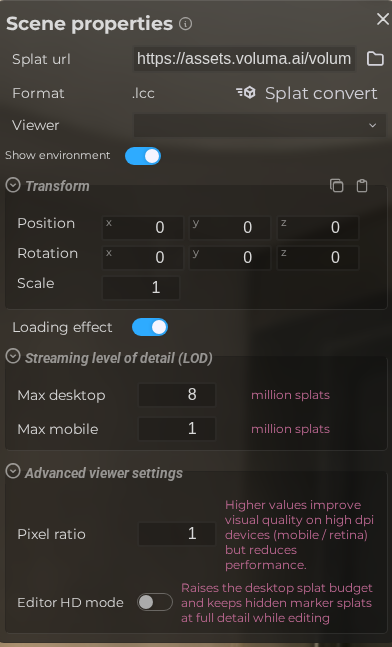
LCC viewer interface elements
| Element | Details |
|---|---|
 | Show Env Toggle whether the environment splat layer is shown alongside the main splat. |
 | Loading Effect Enable an animated loading effect while the splat is being loaded. |
 | Max Splats (Desktop) Set the maximum number of splat points loaded on desktop devices, in millions. |
 | Max Splats (Mobile) Set the maximum number of splat points loaded on mobile devices, in millions. |