
Marker Audio
Use Audio to add sound behavior to a selected marker.
The Type dropdown chooses the audio mode. In the screenshot it is set to None, which means the marker has no audio behavior configured.
Once an audio type is selected, extra fields appear for source and playback. Set Type to None for silent markers when label or action already provides context.
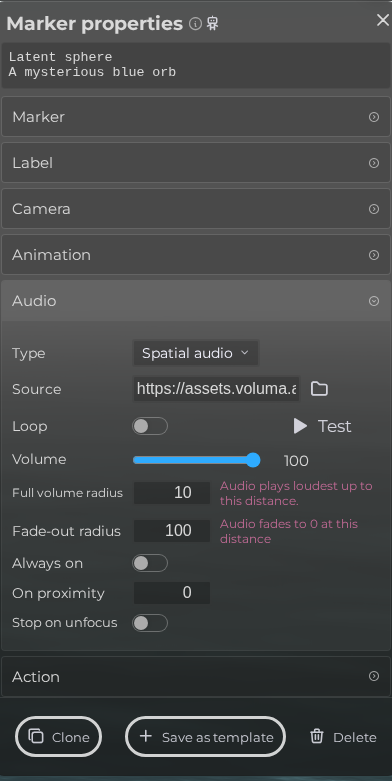 Steps: Expand markers section → Select the first marker in the list to open the properties panel → Open the Audio section → Expand all collapsed fieldsets in the Audio section
Interface elements
| Element | Details |
|---|---|
 | Type Configure the type for the marker Audio. |
 | Source Choose an audio file to play. |
 | Loop Loop sound. |
 | Volume The playback volume. |
 | Full Volume Radius The radius around the marker where the audio is at full volume. |
 | Fade Out Radius Maximum audio range: Audio volume fades to zero at this distance. |
 | Editor Marker Properties Audio Always On Documentation for Editor Marker Properties Audio Always On. |
 | Within Distance from the marker at which nearby audio starts playing. |
 | Fade Out On Blur Fade out the audio when the marker or its focus group loses focus (the On leave card). |