
Scene Markers
Scene marker settings control annotation behavior across the whole scene and keep marker output consistent across multiple points of interest.
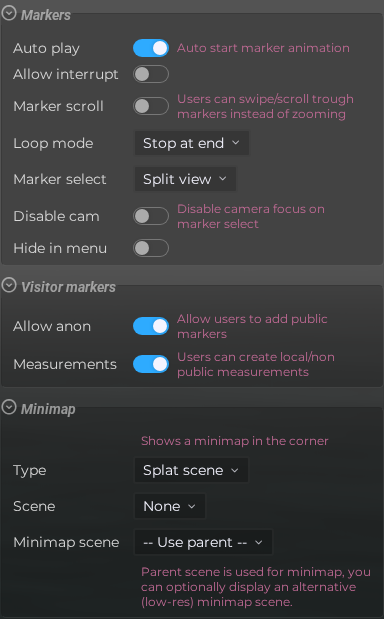 Steps: Expand scene settings section → Select the Markers scene section → Enable auto flythrough to reveal interrupt controls
Interface elements
Markers
| Element | Details |
|---|---|
 | Auto Flythrough Automatically fly through all markers in sequence when the scene loads. |
 | Allow Interrupt Allow viewers to stop the auto flythrough by interacting with the scene. |
 | Marker Scroll Enable scrolling through markers using the mouse wheel or touch swipe. |
 | Loop Mode Control what happens when the flythrough reaches the last marker: stop, loop back to the start, or ping-pong back and forth. |
 | Selection Mode Choose how other markers behave when one is selected: focus, hide others, hide other children, or hide after. |
 | No Camera Focus Disable the camera animation that flies to a marker when it is selected. |
 | Hide in Menu Hide all markers from the marker navigation menu by default. |
Visitor markers
| Element | Details |
|---|---|
 | Allow Anonymous Markers Allow visitors to place their own markers without being logged in. |
 | Measurements Enable visitors to place measurement markers to measure distances in the scene. |
Minimap
| Element | Details |
|---|---|
 | Minimap Type Show a minimap panel alongside the scene: none, a geographic map, or a scene overview. |
 | Minimap Parent Scene Select a parent scene to use as the minimap overview when using scene minimap mode. |
 | Minimap Low-Res Scene Optionally select a lower-resolution scene to render inside the minimap panel for better performance. |